

What you’ll need
- A Google Cloud project with Cloud Storage enabled.
- Permission to create buckets and manage service accounts in that project.
Step 1 – Create a private GCS bucket (fine‑grained)
- In the Google Cloud console, go to Cloud Storage → Buckets → Create. [web:4]
- Choose:
- Bucket name: A globally unique name, for example
syne-analytics-data. This exact name will go into the Bucket Name field in Syne. - Location: Pick your preferred region (for example
us-east1).
- Bucket name: A globally unique name, for example
- In Access control, select Fine-grained so you can manage access at the object level and use S3-compatible ACLs.
- Leave Public access disabled. Do not add any “public” or
allUserspermissions.
Step 2 – Create HMAC (S3-style) access keys in GCS
GCS exposes S3-compatible credentials via HMAC keys in the Interoperability settings. [web:20]Option A – Use a service account (recommended)
Option A – Use a service account (recommended)
- In the Google Cloud console, go to Cloud Storage → Settings → Interoperability.
- Under Service account HMAC, choose the service account that Syne should use, then click Create key.
- Copy the generated values:
- Access key – this goes into Syne’s Access Key field.
- Secret – this goes into Syne’s Secret Key field. The secret is shown only once, so store it securely (for example in a password manager).
- Make sure the service account has the right roles on your bucket, such as:
Storage Object Viewerfor read-only.Storage Object Adminfor read/write.
Option B – Rotate / delete HMAC keys later
Option B – Rotate / delete HMAC keys later
- To rotate a key, create a new HMAC key, update Syne with the new Access key and Secret, then disable or delete the old key in the Interoperability section.
- Avoid having unused active keys to reduce the blast radius of a credential leak.
Step 3 – Fill out the Syne storage form
Open Storages(Click here) → Add Storage in Syne and use the following values.
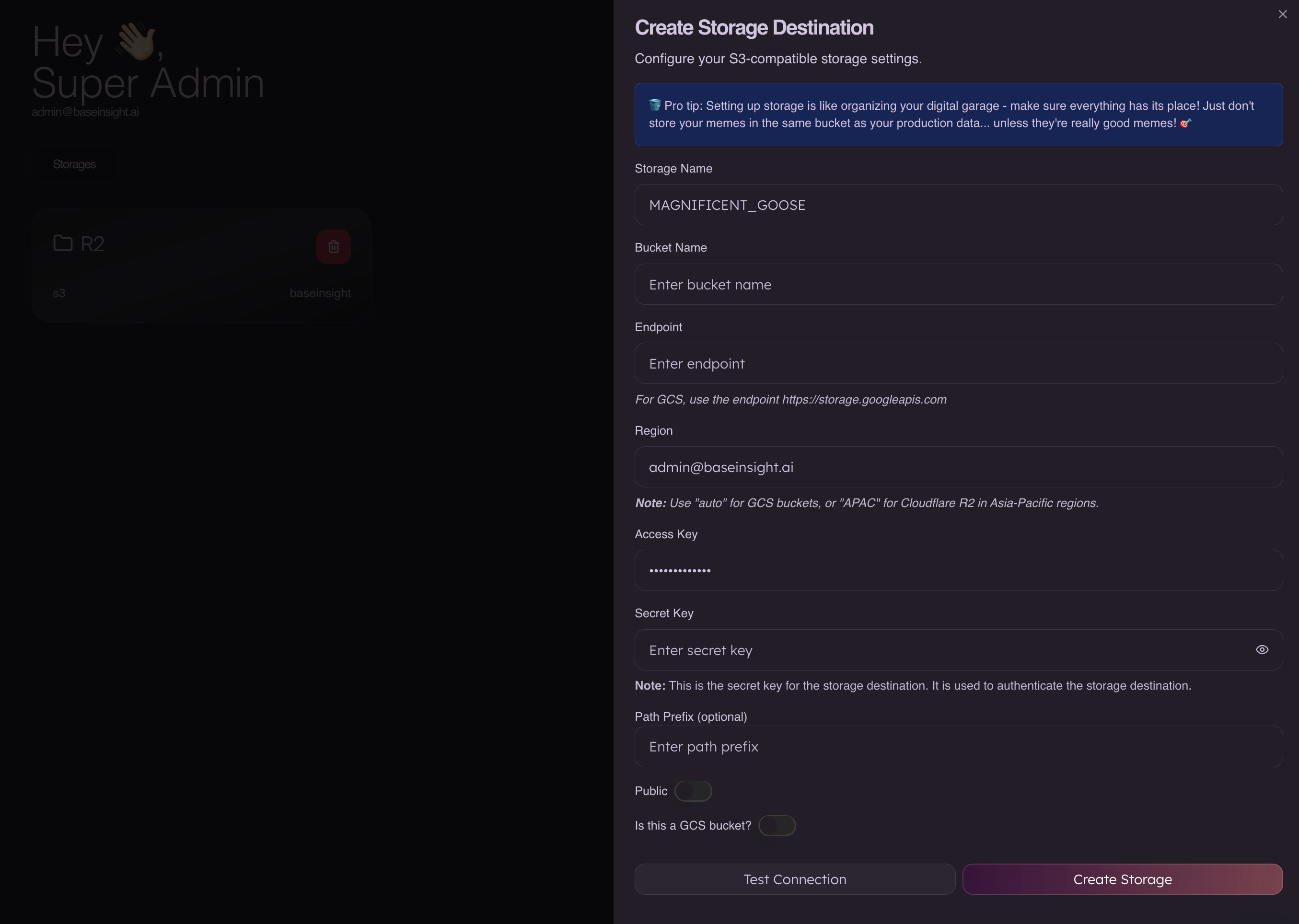
Basic fields
- Storage Name
- Any internal label in Syne, for example
MAGNIFICENT_GOOSE.
- Any internal label in Syne, for example
- Bucket Name
- The exact GCS bucket name created in Step 1, for example
syne-analytics-data.
- The exact GCS bucket name created in Step 1, for example
- Endpoint
- Use the GCS XML (S3-compatible) endpoint:
https://storage.googleapis.com
- Use the GCS XML (S3-compatible) endpoint:
- Region
- For GCS via S3 clients, a synthetic region like
autois typically used; follow the Syne UI hint for GCS (for exampleauto).
- For GCS via S3 clients, a synthetic region like
Credentials
- Access Key
- Paste the Access key from the HMAC key you created in Step 2.
- Secret Key
- Paste the Secret from the same HMAC key.
Advanced
- Path Prefix (optional)
- Leave empty to write at the bucket root, or set a prefix such as
syne/to keep all Syne data under a folder‑like path.
- Leave empty to write at the bucket root, or set a prefix such as
- Public
- Keep this off. Syne will not mark objects as publicly readable; access is controlled by IAM and object ACLs instead.
- Is this a GCS bucket?
- Turn this on if the toggle is available so Syne knows to use the GCS S3-compatible endpoint instead of AWS S3.
Step 4 – Keep the bucket private and secure
- Do not grant
allUsersorallAuthenticatedUsersroles at the bucket or object level; that would make data public or broadly accessible. - Prefer service-account HMAC keys over user keys, and restrict the service account to the minimum roles required (
Storage Object ViewerorStorage Object Admin). - Rotate HMAC keys periodically and remove unused keys in the Interoperability settings.