> ## Documentation Index
> Fetch the complete documentation index at: https://docs.synehq.com/llms.txt
> Use this file to discover all available pages before exploring further.
# Connect a Google Cloud Storage bucket via S3
> How to generate GCS HMAC credentials and configure them in Syne using the S3-compatible endpoint.
Configure a **Google Cloud Storage (GCS)** bucket as an S3-compatible storage destination in Syne without making the bucket public and while keeping fine‑grained access control enabled.
## What you’ll need
* A Google Cloud project with Cloud Storage enabled.
* Permission to create buckets and manage service accounts in that project.
***
## Step 1 – Create a private GCS bucket (fine‑grained)
1. In the Google Cloud console, go to **Cloud Storage → Buckets → Create**. \[web:4]
2. Choose:
* **Bucket name**: A globally unique name, for example `syne-analytics-data`. This exact name will go into the **Bucket Name** field in Syne.
* **Location**: Pick your preferred region (for example `us-east1`).
3. In **Access control**, select **Fine-grained** so you can manage access at the object level and use S3-compatible ACLs.
4. Leave **Public access** disabled. Do not add any “public” or `allUsers` permissions.
Your bucket is now private and uses fine‑grained access control.
***
## Step 2 – Create HMAC (S3-style) access keys in GCS
GCS exposes S3-compatible credentials via **HMAC keys** in the Interoperability settings. \[web:20]
* In the Google Cloud console, go to **Cloud Storage → Settings → Interoperability**.
* Under **Service account HMAC**, choose the service account that Syne should use, then click **Create key**.
* Copy the generated values:
* **Access key** – this goes into Syne’s **Access Key** field.
* **Secret** – this goes into Syne’s **Secret Key** field. The secret is shown only once, so store it securely (for example in a password manager).
* Make sure the service account has the right roles on your bucket, such as:
* `Storage Object Viewer` for read-only.
* `Storage Object Admin` for read/write.
* To rotate a key, create a new HMAC key, update Syne with the new **Access key** and **Secret**, then disable or delete the old key in the Interoperability section.
* Avoid having unused active keys to reduce the blast radius of a credential leak.
***
## Step 3 – Fill out the Syne storage form
Open **Storages(**`Click here`**) → Add Storage** in Syne and use the following values.
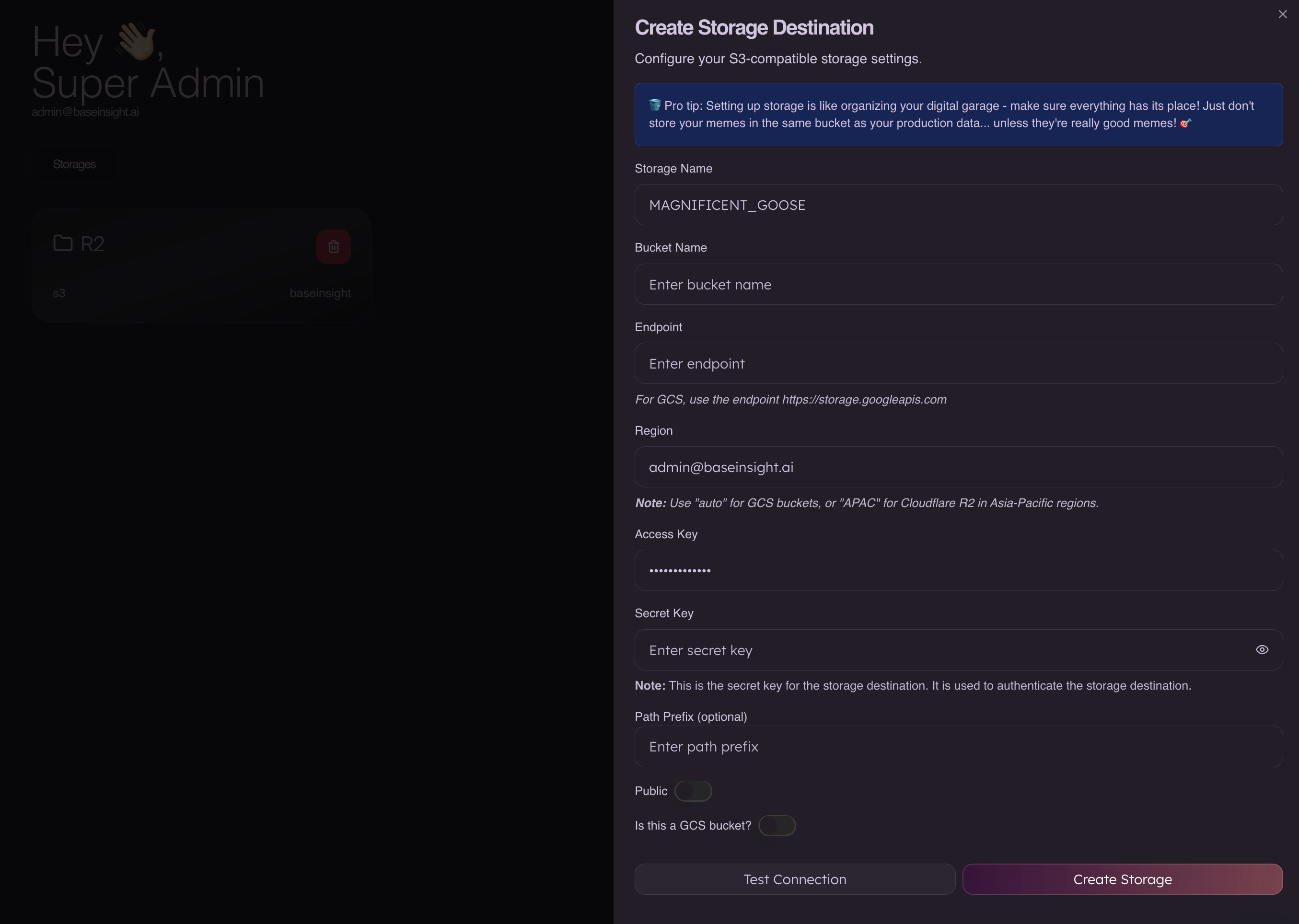 ### Basic fields
* **Storage Name**
* Any internal label in Syne, for example `MAGNIFICENT_GOOSE`.
* **Bucket Name**
* The exact GCS bucket name created in Step 1, for example `syne-analytics-data`.
* **Endpoint**
* Use the GCS XML (S3-compatible) endpoint:
* `https://storage.googleapis.com`
* **Region**
* For GCS via S3 clients, a synthetic region like `auto` is typically used; follow the Syne UI hint for GCS (for example `auto`).
### Credentials
* **Access Key**
* Paste the **Access key** from the HMAC key you created in Step 2.
* **Secret Key**
* Paste the **Secret** from the same HMAC key.
### Advanced
* **Path Prefix (optional)**
* Leave empty to write at the bucket root, or set a prefix such as `syne/` to keep all Syne data under a folder‑like path.
* **Public**
* Keep this **off**. Syne will not mark objects as publicly readable; access is controlled by IAM and object ACLs instead.
* **Is this a GCS bucket?**
* Turn this **on** if the toggle is available so Syne knows to use the GCS S3-compatible endpoint instead of AWS S3.
***
## Step 4 – Keep the bucket private and secure
* Do **not** grant `allUsers` or `allAuthenticatedUsers` roles at the bucket or object level; that would make data public or broadly accessible.
* Prefer service-account HMAC keys over user keys, and restrict the service account to the minimum roles required (`Storage Object Viewer` or `Storage Object Admin`).
* Rotate HMAC keys periodically and remove unused keys in the **Interoperability** settings.
### Basic fields
* **Storage Name**
* Any internal label in Syne, for example `MAGNIFICENT_GOOSE`.
* **Bucket Name**
* The exact GCS bucket name created in Step 1, for example `syne-analytics-data`.
* **Endpoint**
* Use the GCS XML (S3-compatible) endpoint:
* `https://storage.googleapis.com`
* **Region**
* For GCS via S3 clients, a synthetic region like `auto` is typically used; follow the Syne UI hint for GCS (for example `auto`).
### Credentials
* **Access Key**
* Paste the **Access key** from the HMAC key you created in Step 2.
* **Secret Key**
* Paste the **Secret** from the same HMAC key.
### Advanced
* **Path Prefix (optional)**
* Leave empty to write at the bucket root, or set a prefix such as `syne/` to keep all Syne data under a folder‑like path.
* **Public**
* Keep this **off**. Syne will not mark objects as publicly readable; access is controlled by IAM and object ACLs instead.
* **Is this a GCS bucket?**
* Turn this **on** if the toggle is available so Syne knows to use the GCS S3-compatible endpoint instead of AWS S3.
***
## Step 4 – Keep the bucket private and secure
* Do **not** grant `allUsers` or `allAuthenticatedUsers` roles at the bucket or object level; that would make data public or broadly accessible.
* Prefer service-account HMAC keys over user keys, and restrict the service account to the minimum roles required (`Storage Object Viewer` or `Storage Object Admin`).
* Rotate HMAC keys periodically and remove unused keys in the **Interoperability** settings.