> ## Documentation Index
> Fetch the complete documentation index at: https://docs.synehq.com/llms.txt
> Use this file to discover all available pages before exploring further.
# Connect AWS S3
> How to generate credentials and configure Connect AWS S3 storage destinations in Syne.
Amazon S3 is the canonical S3 implementation; you connect it by creating a bucket and an IAM user with access keys scoped to that bucket.
### Step 1 – Create an S3 bucket
* In the AWS console, go to **S3 → Buckets → Create bucket**.
* Choose:
* **Bucket name**: For example `syne-s3-data`.
* **AWS Region**: For example `us-east-1`.
* Block all public access unless you explicitly need public objects; Syne can work with private buckets.
### Step 2 – Create an IAM user and access keys
Create an IAM user dedicated to Syne and grant it least-privilege access to the bucket.
* Open the **IAM** console → **Users → Create user**.
* Name the user (for example `syne-storage`), and choose **Access key – Programmatic access** as the credential type (varies slightly in new UI).
* Attach a policy that gives access to your bucket only. You can:
* Use AWS managed policies like **AmazonS3ReadOnlyAccess** (for read-only) or **AmazonS3FullAccess** (for testing), **or**
* Create a custom policy that limits access to `arn:aws:s3:::syne-s3-data` and `arn:aws:s3:::syne-s3-data/*`.
* After creating the user, open the user → **Security credentials → Access keys**.
* Click **Create access key**, choose the use case **Other**, and finish the wizard.
* Copy:
* **Access key ID** – to use as **Access Key** in Syne.
* **Secret access key** – to use as **Secret Key** in Syne.\
These are shown only once; download the CSV or store them securely.
### Step 3 – Fill out the Syne storage form (S3)
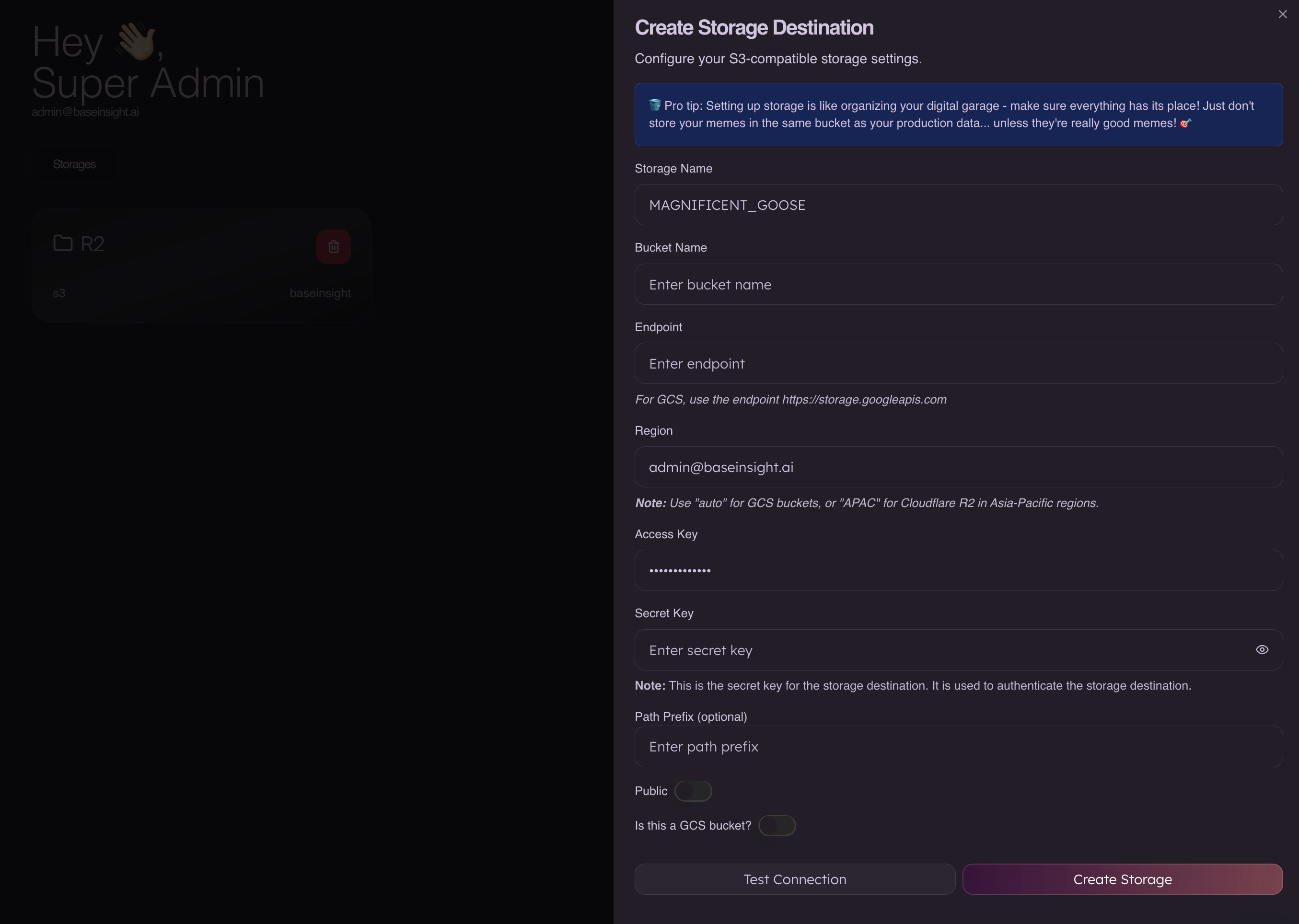 For a standard Amazon S3 connection, set:
* **Storage Name**
* Any label, for example `AWS_S3_PRIMARY`.
* **Bucket Name**
* Your S3 bucket name, e.g. `syne-s3-data`.
* **Endpoint**
* Leave blank to let the SDK use the default S3 endpoint for the chosen region, or explicitly set `https://s3..amazonaws.com` (for example `https://s3.us-east-1.amazonaws.com`).
* **Region**
* Your bucket’s AWS region, e.g. `us-east-1`.
* **Access Key**
* The IAM user’s **Access key ID**.
* **Secret Key**
* The IAM user’s **Secret access key**.
* **Path Prefix (optional)**
* Optional prefix like `syne/` inside the bucket.
* **Public**
* Keep **off** by default; Syne does not require public buckets. Control access via IAM and S3 bucket policies.
***
## Security best practices
* Use dedicated credentials (service account / IAM user / R2 token) per environment (dev, staging, prod).
* Grant only the permissions Syne needs (typically list, read, and write for a single bucket).
* Rotate access keys periodically and remove unused keys or tokens.
For a standard Amazon S3 connection, set:
* **Storage Name**
* Any label, for example `AWS_S3_PRIMARY`.
* **Bucket Name**
* Your S3 bucket name, e.g. `syne-s3-data`.
* **Endpoint**
* Leave blank to let the SDK use the default S3 endpoint for the chosen region, or explicitly set `https://s3..amazonaws.com` (for example `https://s3.us-east-1.amazonaws.com`).
* **Region**
* Your bucket’s AWS region, e.g. `us-east-1`.
* **Access Key**
* The IAM user’s **Access key ID**.
* **Secret Key**
* The IAM user’s **Secret access key**.
* **Path Prefix (optional)**
* Optional prefix like `syne/` inside the bucket.
* **Public**
* Keep **off** by default; Syne does not require public buckets. Control access via IAM and S3 bucket policies.
***
## Security best practices
* Use dedicated credentials (service account / IAM user / R2 token) per environment (dev, staging, prod).
* Grant only the permissions Syne needs (typically list, read, and write for a single bucket).
* Rotate access keys periodically and remove unused keys or tokens.