> ## Documentation Index
> Fetch the complete documentation index at: https://docs.synehq.com/llms.txt
> Use this file to discover all available pages before exploring further.
# Quick Start
> Set up your first connection and get insights in minutes
 ## Who this is for
* **New users** who want to see value in minutes
* **Teams evaluating SyneHQ** for SaaS or enterprise self-hosting
* **Stakeholders** who want a fast, realistic demo path
You can use SyneHQ as a managed SaaS or deploy it in your own environment (enterprise). This quick start focuses on the fastest SaaS path, with notes for self-hosted where relevant.
## Step 1 — Sign in
1. Go to `https://data.synehq.com`
2. Create an account or sign in
3. Complete the onboarding tour (optional)
Create your SyneHQ account
Learn what SyneHQ can do
## Step 2 — Connect a data source (2 minutes)
1. Go to `Home → Connections`
2. Click `Add connection`
3. Choose your database (e.g., PostgreSQL, MySQL, MongoDB)
4. Enter host, database, user, and password
5. Click `Test` then `Save`

Prefer a guided setup? Use the help in `Home → Connections` for a step‑by‑step tour.
Full list of SQL, NoSQL, and analytics sources
## Setp 3 - Ask your first question
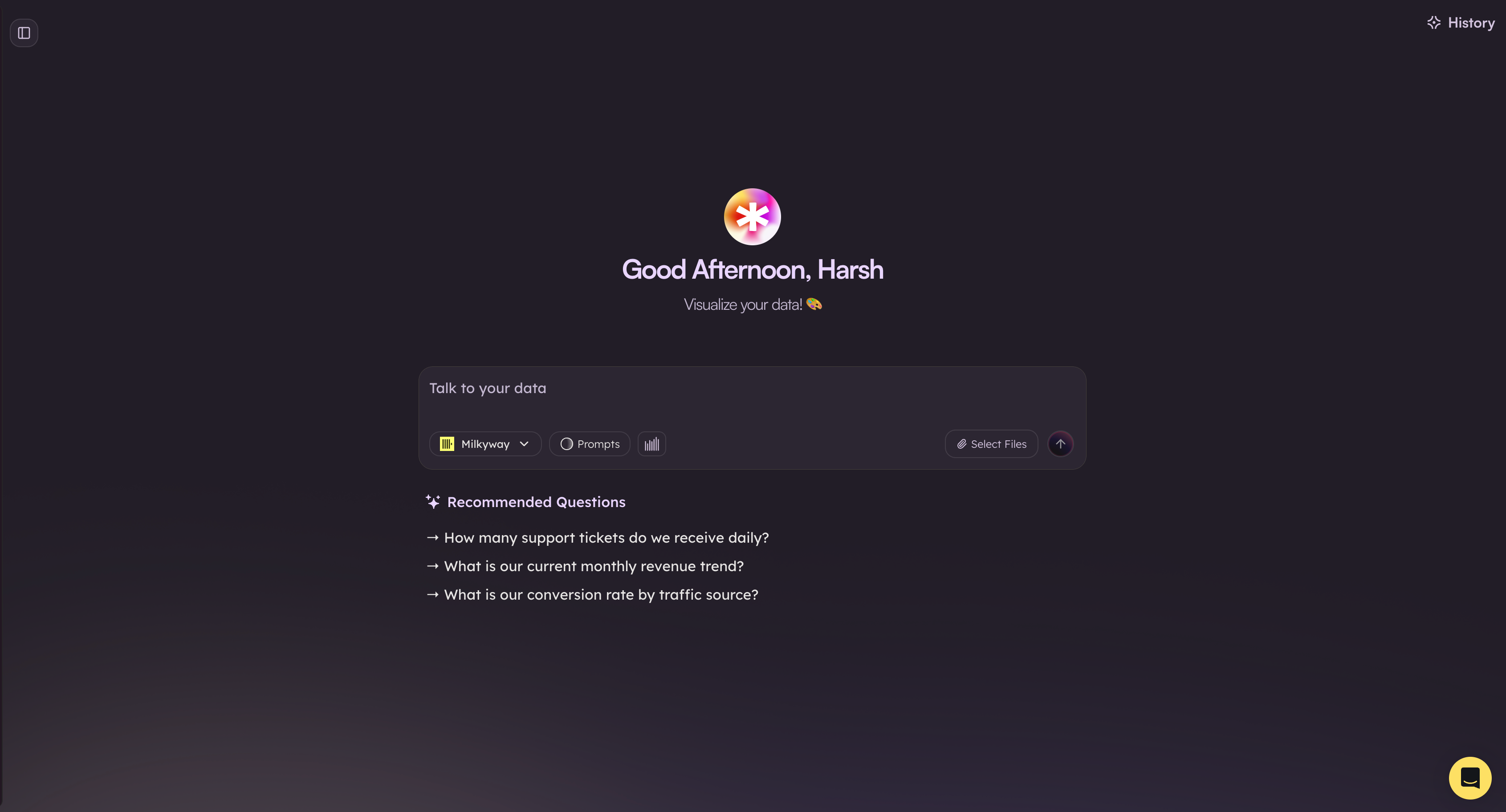
1. Go to `Chat → Chat Input`
2. Select your connection of choice
3. In the ask box, type: "Show me a heatmap of trip density by neighbourhood"
## Step 4 — Ask your first database query
1. Go to `Console → Queries`
2. In the ask box, type: "Show me total revenue by month"
3. Select your connection, then run
4. Review the generated SQL and results
```sql theme={"system"}
-- Example SQL the AI may generate
SELECT DATE_TRUNC('month', order_date) AS month,
SUM(amount) AS total_revenue
FROM orders
GROUP BY month
ORDER BY month;
```
Tips for better natural language questions
## Step 4 — Visualize and share
1. Click `Visualize` and choose a chart type
2. Save as a `Dashboard` (name it "Revenue Overview")
3. Share with your team using access controls
From query to chart in one click
SaaS, self‑hosted (enterprise), or hybrid
## Optional — Self-hosted quick path (enterprise)
* Deploy the app, then repeat Steps 2–4 inside your environment
* Use secure tunneling for local/private databases
* Integrate SSO and enterprise RBAC
Install with Docker, Compose, or Kubernetes
## Troubleshooting
* **Connection failed**: Verify host/port, network/firewall, and credentials
* **SSL errors**: Ensure correct certificates or disable verify in dev
* **No tables found**: Check DB permissions for the SyneHQ user
* **Slow queries**: Start with smaller tables; see performance tips
Connection strings, security, and tuning
Caching, indexing, and scaling options
## Next steps
* Connect more sources (PostgreSQL + MongoDB + ClickHouse)
* Try cross‑database joins ("Compare web and app users")
* Build a team dashboard and schedule reviews
* Set up SSO and roles for your organization
Add more connections
Query smarter with natural language
Choose SaaS or enterprise self-hosted
## Who this is for
* **New users** who want to see value in minutes
* **Teams evaluating SyneHQ** for SaaS or enterprise self-hosting
* **Stakeholders** who want a fast, realistic demo path
You can use SyneHQ as a managed SaaS or deploy it in your own environment (enterprise). This quick start focuses on the fastest SaaS path, with notes for self-hosted where relevant.
## Step 1 — Sign in
1. Go to `https://data.synehq.com`
2. Create an account or sign in
3. Complete the onboarding tour (optional)
Create your SyneHQ account
Learn what SyneHQ can do
## Step 2 — Connect a data source (2 minutes)
1. Go to `Home → Connections`
2. Click `Add connection`
3. Choose your database (e.g., PostgreSQL, MySQL, MongoDB)
4. Enter host, database, user, and password
5. Click `Test` then `Save`

Prefer a guided setup? Use the help in `Home → Connections` for a step‑by‑step tour.
Full list of SQL, NoSQL, and analytics sources
## Setp 3 - Ask your first question
1. Go to `Chat → Chat Input`
2. Select your connection of choice
3. In the ask box, type: "Show me a heatmap of trip density by neighbourhood"

## Step 4 — Ask your first database query
1. Go to `Console → Queries`
2. In the ask box, type: "Show me total revenue by month"
3. Select your connection, then run
4. Review the generated SQL and results
```sql theme={"system"}
-- Example SQL the AI may generate
SELECT DATE_TRUNC('month', order_date) AS month,
SUM(amount) AS total_revenue
FROM orders
GROUP BY month
ORDER BY month;
```
Tips for better natural language questions
## Step 4 — Visualize and share
1. Click `Visualize` and choose a chart type
2. Save as a `Dashboard` (name it "Revenue Overview")
3. Share with your team using access controls
From query to chart in one click
SaaS, self‑hosted (enterprise), or hybrid
## Optional — Self-hosted quick path (enterprise)
* Deploy the app, then repeat Steps 2–4 inside your environment
* Use secure tunneling for local/private databases
* Integrate SSO and enterprise RBAC
Install with Docker, Compose, or Kubernetes
## Troubleshooting
* **Connection failed**: Verify host/port, network/firewall, and credentials
* **SSL errors**: Ensure correct certificates or disable verify in dev
* **No tables found**: Check DB permissions for the SyneHQ user
* **Slow queries**: Start with smaller tables; see performance tips
Connection strings, security, and tuning
Caching, indexing, and scaling options
## Next steps
* Connect more sources (PostgreSQL + MongoDB + ClickHouse)
* Try cross‑database joins ("Compare web and app users")
* Build a team dashboard and schedule reviews
* Set up SSO and roles for your organization
Add more connections
Query smarter with natural language
Choose SaaS or enterprise self-hosted